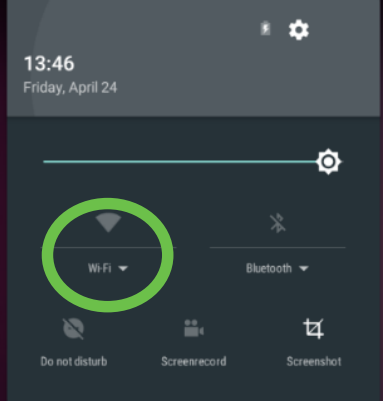
To connect to Wi-Fi, use two fingers and drag them down from the top of the terminal screen to access the Android Quick Settings Panel.
When the panel appears, there will be a small arrow to the right of the Wi-Fi label. Tap the small arrow.
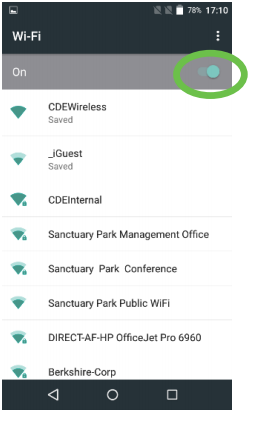
Turn on Wi-Fi by sliding the toggle to see a list of the available Wi-Fi networks in range.
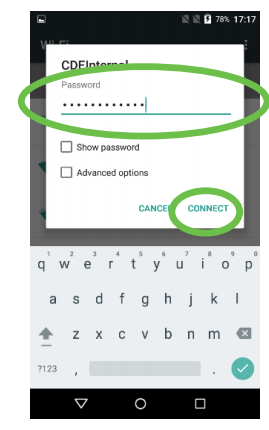
Select your Wi-Fi network from the list and enter the password using the virtual on-screen keyboard, then select CONNECT.
When the connection is successful, the device will obtain an IP address, connect to the network and indicate connection by displaying the Wi-Fi symbol on the top of the home screen.
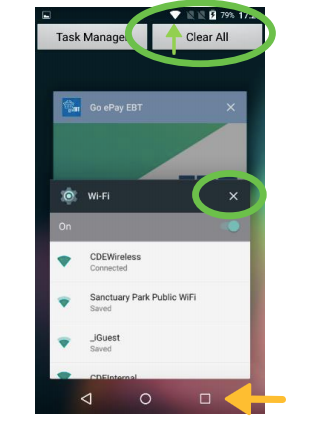
To close the Wi-Fi settings, select the square icon at the bottom of the screen, then:
On the PAX A80, select the ‘X’ in the top right corner of the application window.
On the PAX A920, select the Clear All button at the top of the screen.
If you are still having trouble, you can choose watch a short tutorial video on connecting to Wi-Fi.
-2.png?width=200&height=100&name=goEBT%20Transparent%20Background%20(800x400%20png)-2.png)